How to get your HubSpot API Key
Learn how to create a HubSpot Private App and generate an access token to securely connect SyncIn with your CRM.
Did you know that you can use the HubSpot API to access very specific data in your account in a secure way? You can do this with HubSpot's Private Apps.
In this article, we'll teach you what Private Apps are, how you can create and use them to personalize your experience on the platform and get the most value from your data in HubSpot.
What are Private Apps?
In simple terms, Private Apps are a way to access specific data in a HubSpot account by generating an access token. These apps can only be used by the HubSpot account in which they were created and can only access the data and resources that have been granted to them through the scopes.
Private Apps came to replace the old “API Keys”. Before, an API Key was the way to authenticate your application to use the HubSpot APIs, giving you access to modify the data of your account. The problem with the API key was that it gave root access to all endpoints — so if someone obtained that key, they would have access to all the information available through requests, without restrictions.
Private Apps are still an authentication mechanism through a token, however, they are different in terms of permissions. You can limit the actions and the scope of the information to which they have access. For example, if you have an app that only requires reading the information of a contact, you can grant only read permissions to the contacts endpoint.
Create a Private App
To create a Private App you must have the corresponding configuration permissions and follow the steps below:
In your HubSpot account, click the settings icon in the main navigation bar.
In the left sidebar menu, go to Integrations → Private Apps.
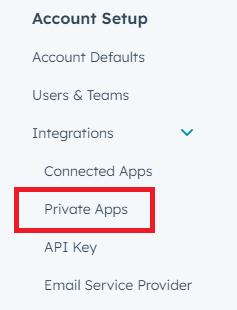
Click the “Create a private app” button.
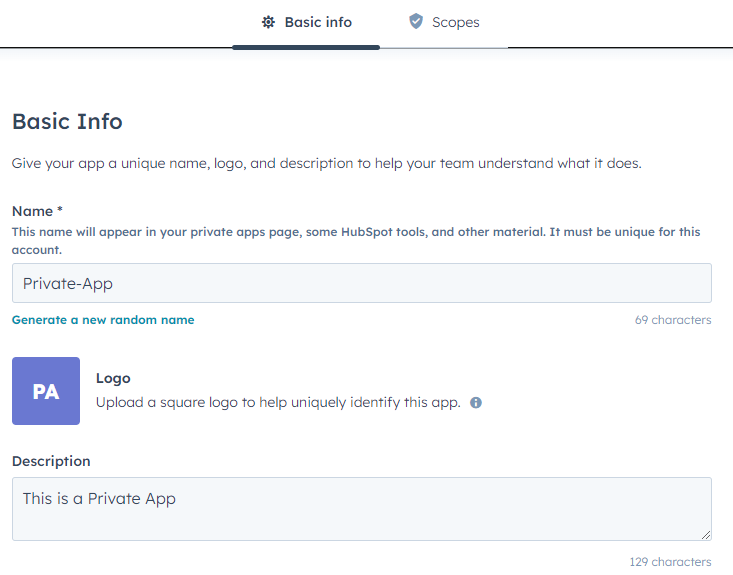
In the “Basic Info” tab, configure the details of your application: name, logo and description.
Now go to the “Scopes” tab. Here you will have a list with all the permissions that you can grant to your application, divided into four categories:
- CMS
- CRM
- Settings
- Standard
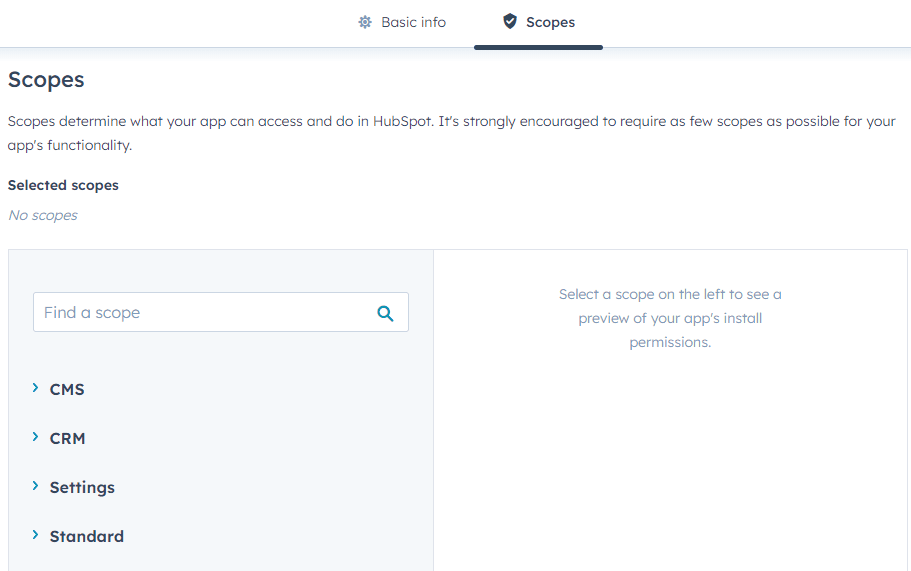
For SyncIn, make sure you enable at least the following scopes:
crm.objects.contacts.readcrm.objects.contacts.writecrm.objects.owners.read
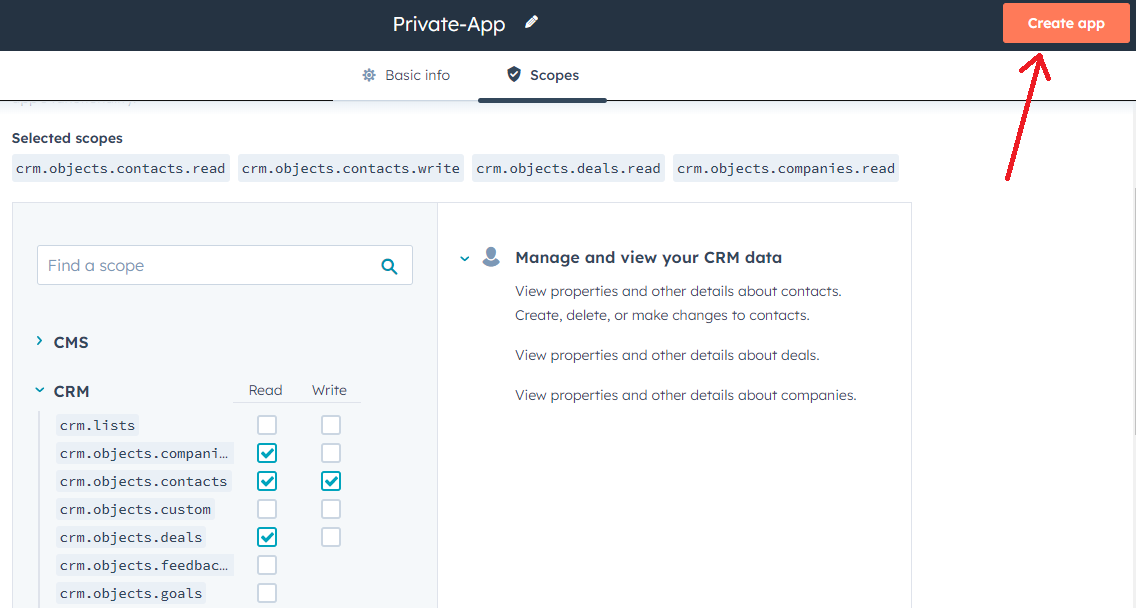
Once you have finished configuring your app, click the “Create app” button in the top right corner.
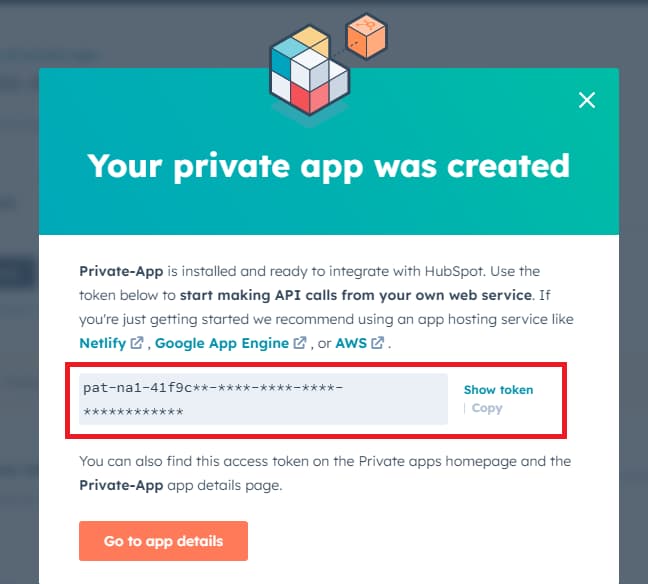
And that's it — your Private App is created! You will see a confirmation screen with your access token. Copy this token and paste it into SyncIn's HubSpot setup page.
Next steps
Once you have your access token, head to your SyncIn dashboard and click the HubSpot setup button to paste it in.