How to set up HubSpot for message logging
Make sure your HubSpot contacts and activity filters are configured correctly so SyncIn messages appear on the timeline.
Step 1: Add phone number and LinkedIn URL to your contacts
SyncIn matches incoming messages to HubSpot contacts using phone number (for WhatsApp) and LinkedIn URL (for LinkedIn). For a message to be logged, the contact must have the correct field filled in.
For WhatsApp messages
Open a contact in HubSpot and make sure the Phone Number field contains a valid number including the country code (e.g. +1 (600) 000-0000). SyncIn will check this field to match incoming WhatsApp messages.
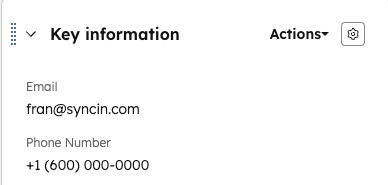
The Phone Number field under Key Information is used to match WhatsApp messages.
For LinkedIn messages
Make sure the contact has a LinkedIn URL or LinkedIn account field filled in. SyncIn uses this to match incoming LinkedIn messages to the right contact.
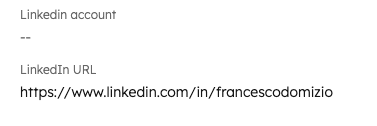
Either the LinkedIn URL or LinkedIn account field is used to match LinkedIn messages.
Quick checklist
- WhatsApp contacts have a valid Phone Number with country code
- LinkedIn contacts have a LinkedIn URL (e.g.
https://www.linkedin.com/in/username) or a LinkedIn account filled in
Step 2: Enable LinkedIn and WhatsApp in the activity filter
Even if messages are being logged correctly by SyncIn, they won't appear on the contact timeline unless the activity filter includes them. Here's how to enable it:
- Open any contact in HubSpot and go to the Activity tab.
- Click on “Filter activity” at the top of the timeline.
- Under the Communication column, make sure both LinkedIn and WhatsApp are checked.
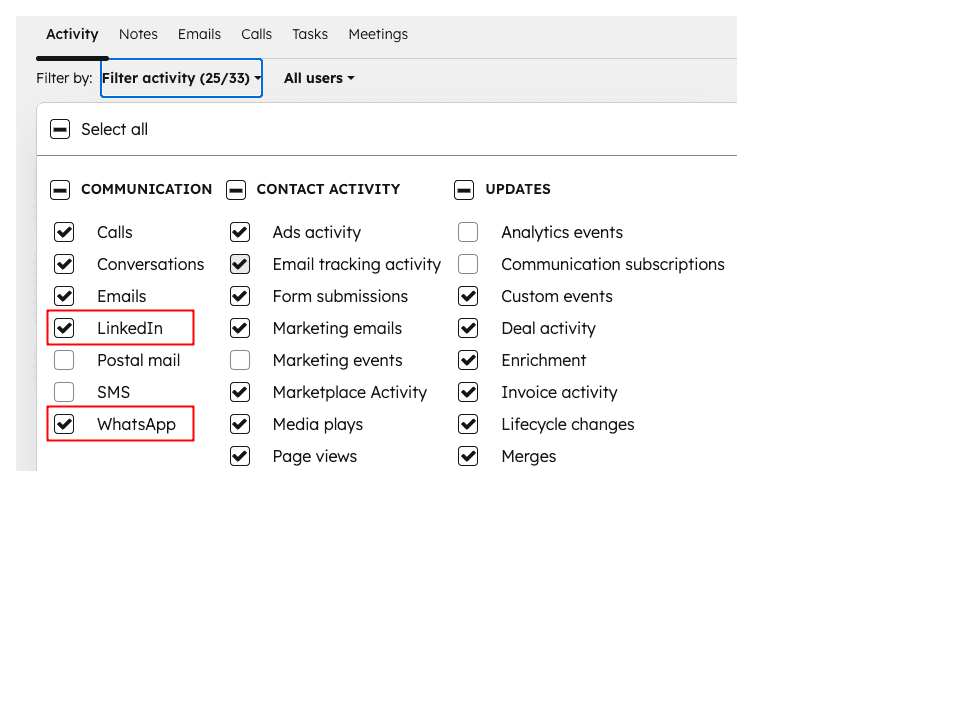
Make sure LinkedIn and WhatsApp are checked under Communication in the activity filter.
Important: If these filters are unchecked, SyncIn messages will still be logged in HubSpot — they just won't be visible on the timeline. Checking the filters makes them appear immediately.
Step 3: Verify messages are appearing
Once everything is set up, you can verify messages are being logged:
Check the SyncIn dashboard
Your dashboard shows every synced message with its status. Look for synced status to confirm messages are going through.
Check the HubSpot contact timeline
Open the matched contact in HubSpot, go to the Activity tab, and you should see WhatsApp or LinkedIn messages with the full content and timestamp.
Troubleshooting
Messages synced but not visible on the timeline?
Check the Filter activity dropdown and make sure LinkedIn and WhatsApp are enabled under Communication.
WhatsApp messages not matching?
Ensure the phone number in HubSpot includes the country code. For example, use +34612345678 instead of 612345678.
LinkedIn messages not matching?
Make sure the LinkedIn URL field contains the full profile URL (e.g. https://www.linkedin.com/in/username) or that the LinkedIn account field is filled in.
In short
For SyncIn to log messages correctly: contacts need a valid phone number (WhatsApp) or LinkedIn URL (LinkedIn), and the activity filter in HubSpot must have LinkedIn and WhatsApp checked. Once both are in place, messages will appear on the contact timeline automatically.